To change your activation code, please sign into myOsmo and click on the blue circular arrow to the right of the "Activation Code" header until you get an activation code that looks good to you:
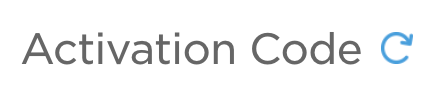
This option is only available if your myOsmo account is for school use. The activation code will only be displayed if you have a school account, so if you don’t see it, you may need to update your account information.
To do that, please click on "Account" on the left of your myOsmo home page and select 'At School' as the location where you use your Osmo.
For more information, please see our instructions for myOsmo account creation and management.
Was this article helpful?
That’s Great!
Thank you for your feedback
Sorry! We couldn't be helpful
Thank you for your feedback
Feedback sent
We appreciate your effort and will try to fix the article